

This guide only applies to model VC500SE.
To confirm your model, look at the label on the back of your product and verify that the model number says VC500SE, as shown in the photo below:
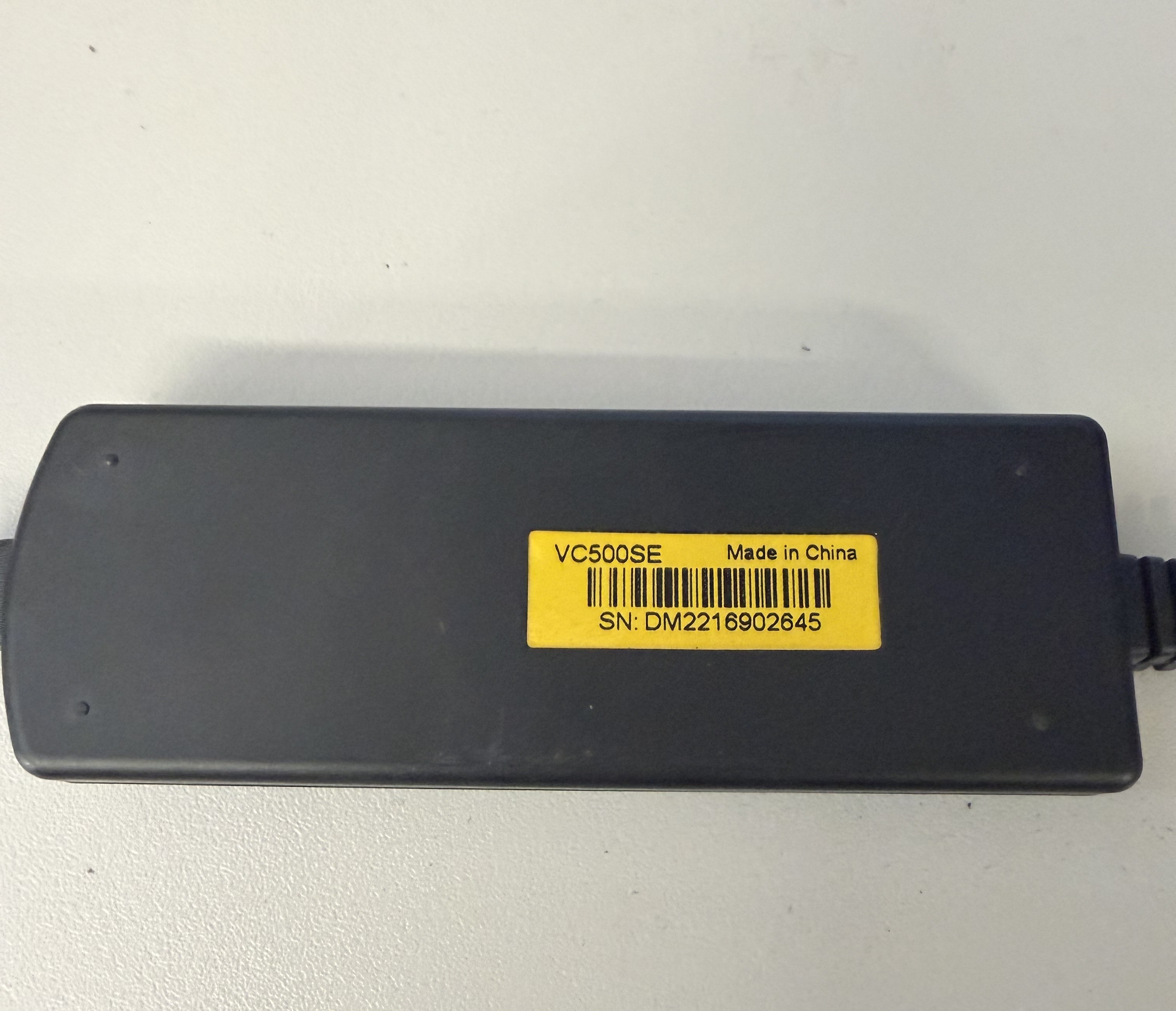
If your product shows a different model number, please use the correct installation guide:
There are two software options available: Honestech & OBS Studio.
If Honestech does not work for your specific setup, please use OBS Studio instead. (The instructions are below)
You can download the entire installation package from the link below. Make sure to extract the ZIP file first:
https://www.diamondmm.com/downloads/CURRENT/PVR/VC500SE.zip
For Mac instructions, please visit the link below and scroll down slightly on the page to locate the relevant steps:
If the VC500SE is not detected or video/audio is not working, follow the steps below:
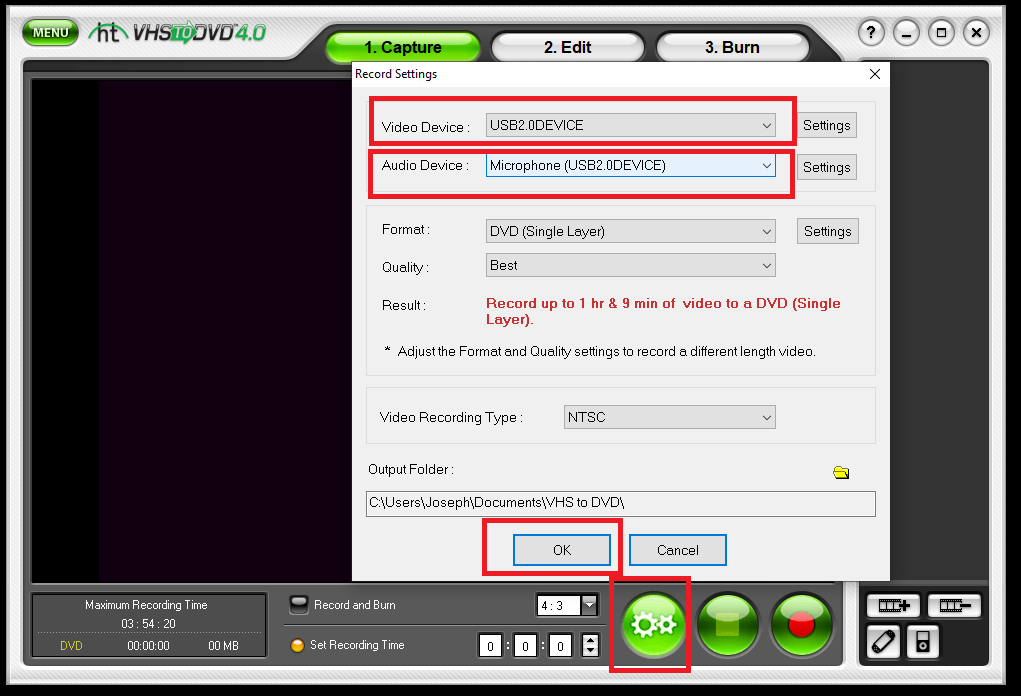
If you could hear the audio during recording, it has been captured correctly. The problem is likely due to Windows Media Player missing the required audio codec. To fix this, we recommend using VLC Media Player, which supports a wide range of audio and video formats. Download it from www.videolan.org
If the Honestech software is not working properly, we recommend trying OBS Studio instead. The setup may take a little time, but once everything is configured, it is a much better and more reliable program for recording videos. If you have any trouble setting it up, please contact us and we will be happy to help you.
– Download OBS Studio here:
https://obsproject.com/
– OBS Studio setup guide:
https://www.diamondmm.com/guide