Model Confirmation
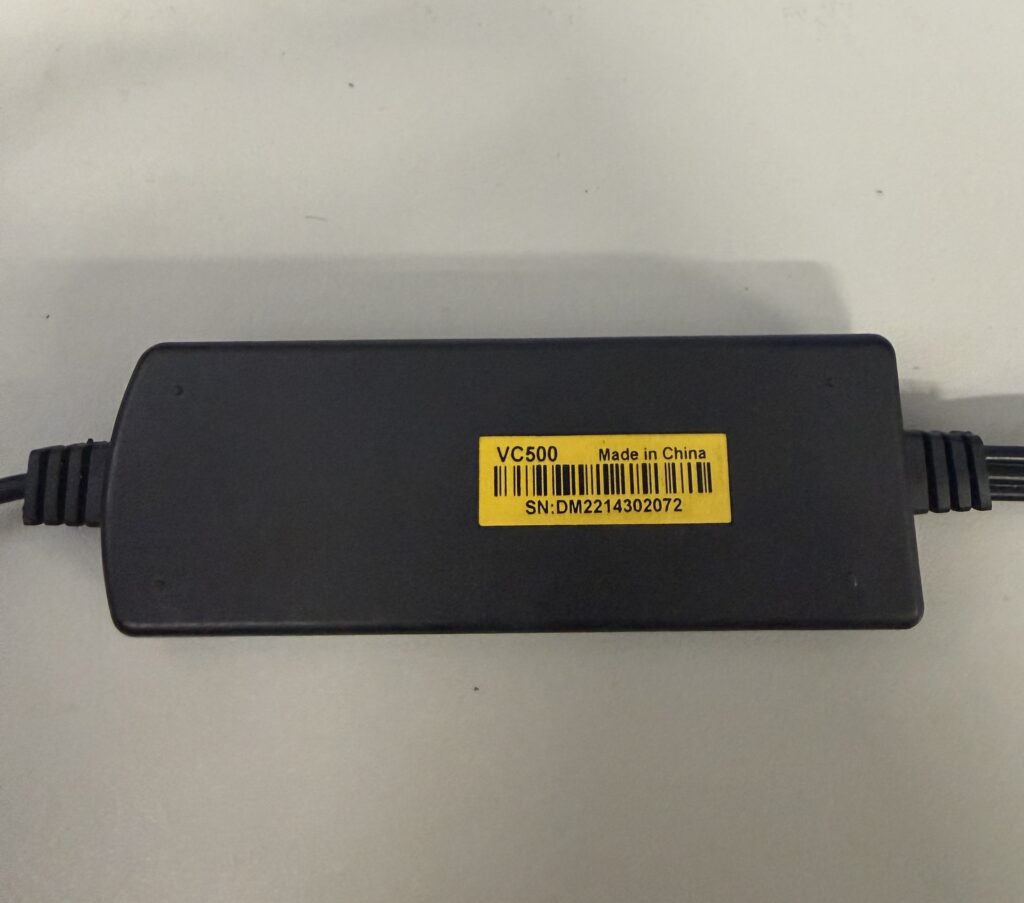
This guide only applies to model VC500.
To confirm your model, look at the label on the back of your product and verify that the model number says VC500, as shown in the photo below:
If your product shows a different model number, please use the correct installation guide:
VC500 Installation Steps
1. Download
You can download the complete installation package here (make sure to extract the VC500.zip file first, otherwise the driver will not install):
https://www.diamondmm.com/downloads/CURRENT/PVR/VC500.zip
2. Install Drivers
- Open the Driver folder.
- Open the x64 folder.
- Run Setup64.exe to install the VC500 drivers.
Note: Make sure the VC500 device is connected before installing the driver.
3. Install the Video Recording Software
- Open the Video Recording folder.
- Run Setup.exe.
- When prompted, enter your CD-KEY.
If you need a CD-Key, email [email protected]
4. Start Recording
Open Honestech VHS to DVD 4.0 SE to begin recording videos.
Windows 11 – Blocked Driver Fix
If Windows 11 blocks the driver after installation, follow these steps:
- Go to the Start Menu and type Windows Security.
- Open Windows Security.
- Go to Device Security.
- Click Core Isolation Details.
- Turn Memory Integrity OFF.
- Reboot your computer.
- Reinstall the driver. When prompted, choose Upgrade.
Troubleshooting
If the VC500 is not detected or video/audio is not working, follow the steps below:
Check USB Connection
- Desktop PC: Unplug the VC500 and connect it to a USB port on the back of the computer for better power and stability.
- Laptop: Unplug the VC500 and try a different USB port.
- Restart the computer after reconnecting.
Confirm Device Detection in Windows
- Open Device Manager.
- Expand Sound, video and game controllers.
- Verify that the following devices appear without warnings:
- USB 2.0 Audio Capture
- USB 2.0 Video Capture
- If these devices are missing or have warning symbols, reinstall the VC500 driver.
Check Windows Camera Privacy Settings
- Open Windows Settings.
- Go to Privacy → Camera.
- Ensure Allow apps to access your camera is ON.
Make Sure Windows is Fully Updated
- Open Windows Settings.
- Go to Update & Security.
- Click Check for updates.
- Install all updates, restart, and check again until no more are available.
Select the Correct Audio Device in the Capture Software
Switching the audio device can sometimes resolve video and sound issues.
- Open the software settings.
- Set the Audio Device to USB Analog Capture.
Issue: No audio or audio out of sync when playing a video in Windows Media Player.
If you could hear the audio during recording, it has been captured correctly. The problem is likely due to Windows Media Player missing the required audio codec. To fix this, we recommend using VLC Media Player, which supports a wide range of audio and video formats. Download it from www.videolan.org