Important Software Update: We previously bundled our capture devices with a third-party software called Honestech. However, because Honestech no longer operates reliably on modern operating systems, we are now transitioning all of our customers to OBS Studio. OBS is completely free, fully compatible, and provides vastly superior capture stability and video quality.
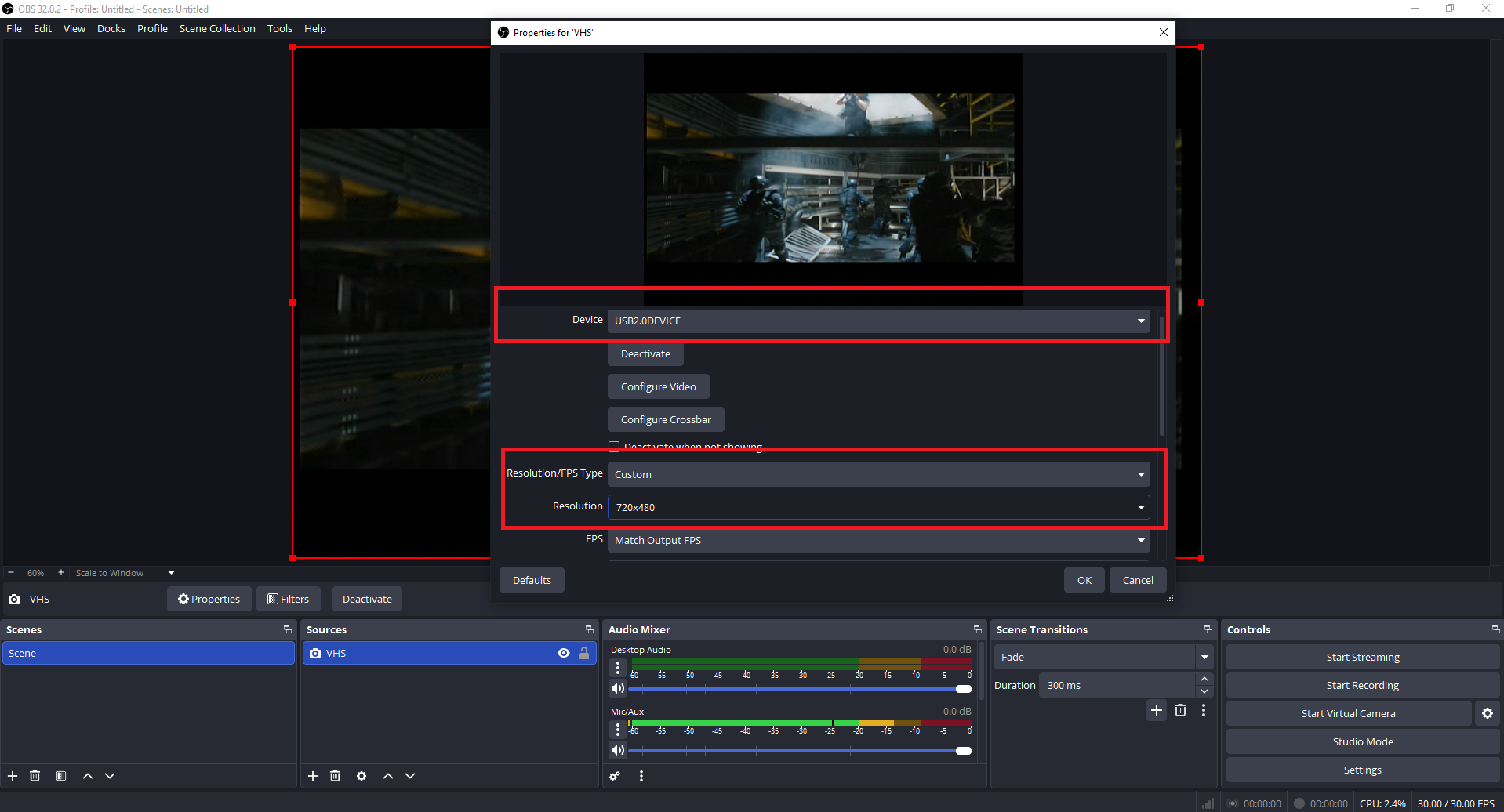
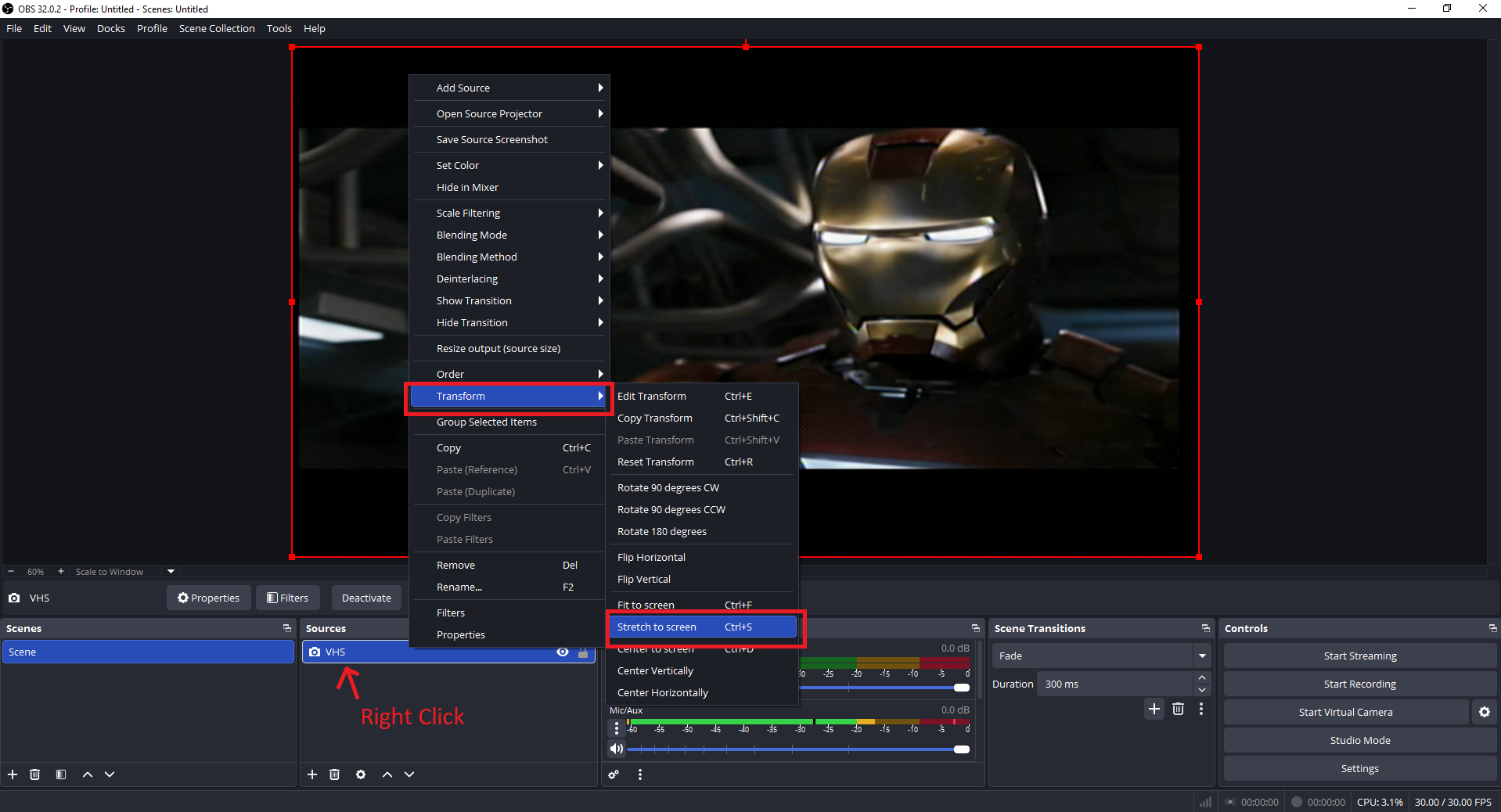
This comprehensive guide provides step-by-step instructions for configuring the Diamond VC500 and VC500SE video capture devices with OBS Studio. For a visual walkthrough, follow our YouTube Video Tutorial here. Timestamps in this guide correspond directly to the video; click them to jump to that section.
Driver Information: There is no need to manually install any hardware drivers for this product. Once plugged into your computer, the necessary universal drivers will install automatically.
Visit obsproject.com and download the version compatible with your operating system.
Run the installer and launch OBS Studio.
When the “Auto-Configuration Wizard” appears, click Cancel to configure manually for the best quality (1:14).
When finished, press Stop on the VHS player and Stop Recording in OBS (4:52).
Where did my VHS video go? To quickly view your saved recording, go to the top menu bar in OBS and select File > Show Recordings. This will instantly pop open the folder where your files are stored.
Troubleshooting & Tips
General Adjustments
Black Screen (Windows): Check Privacy & Security > Camera settings to ensure OBS has access (5:42).
Black Screen (Mac): Check System Settings > Privacy & Security for Camera and Accessibility permissions (6:12).
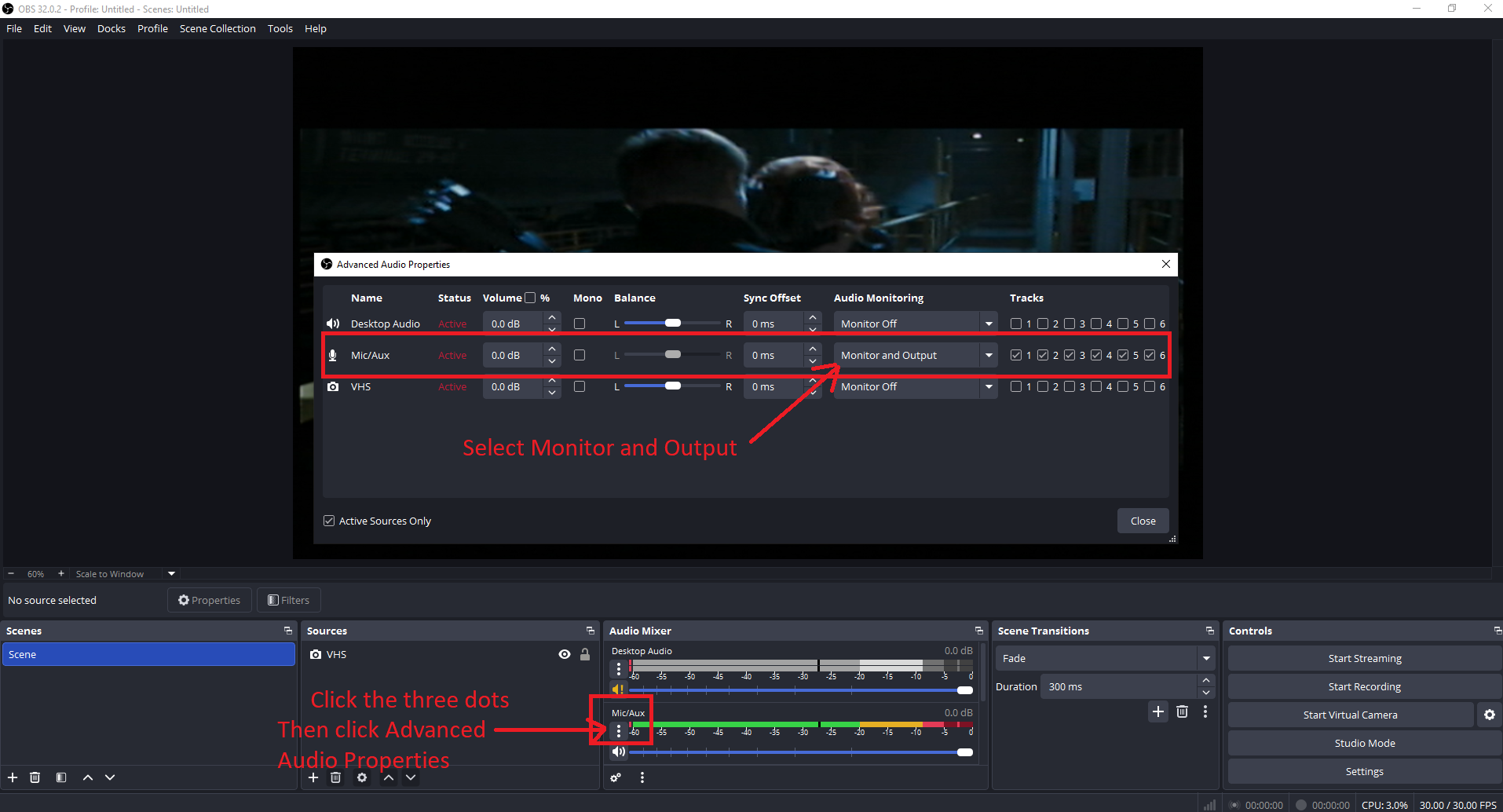
Audio Out of Sync: In Advanced Audio Properties, adjust the Sync Offset (start with 100ms) (6:35).
Editing Your Captured Videos: If you want to edit your videos, you can use the free version of CapCut to do basic video editing.
USB Connectivity Issues
Connect Directly: Avoid using external USB extensions or multi-device USB hubs. Plug the VC500 adapter straight into a port built into your computer.
Switch Ports: If the device isn’t recognized, disconnect it and try a different USB port on your machine (Try behind your computer if you have a desktop).
“No Audio” Fixes
Check Physical Cords: Confirm that both your red and white RCA stereo cables are firmly pushed into the Output channels on your VCR.
VCR Check: Ensure that your VCR or camcorder is not muted and that the output volume levels are raised on the machine itself.
Watch the Mixer: Keep an eye on the Audio Mixer deck inside OBS while your tape plays. The green/yellow volume bars should be visibly bouncing with movement.
Device Selection: Double-check your OBS audio setup and ensure that Microphone (USB 2.0 Mic) is actively selected.