
VC500 Legacy Model (Use if purchased before 2023)
(Use if purchased before 2023)
Only for VC500 units purchased before 2023. These older units need a separate driver and work on Windows only. Bought your VC500 in 2023 or later, or have a VC500SE? No driver is needed: use the VC500 & VC500SE Installation Guide instead.
1 Check Your Model
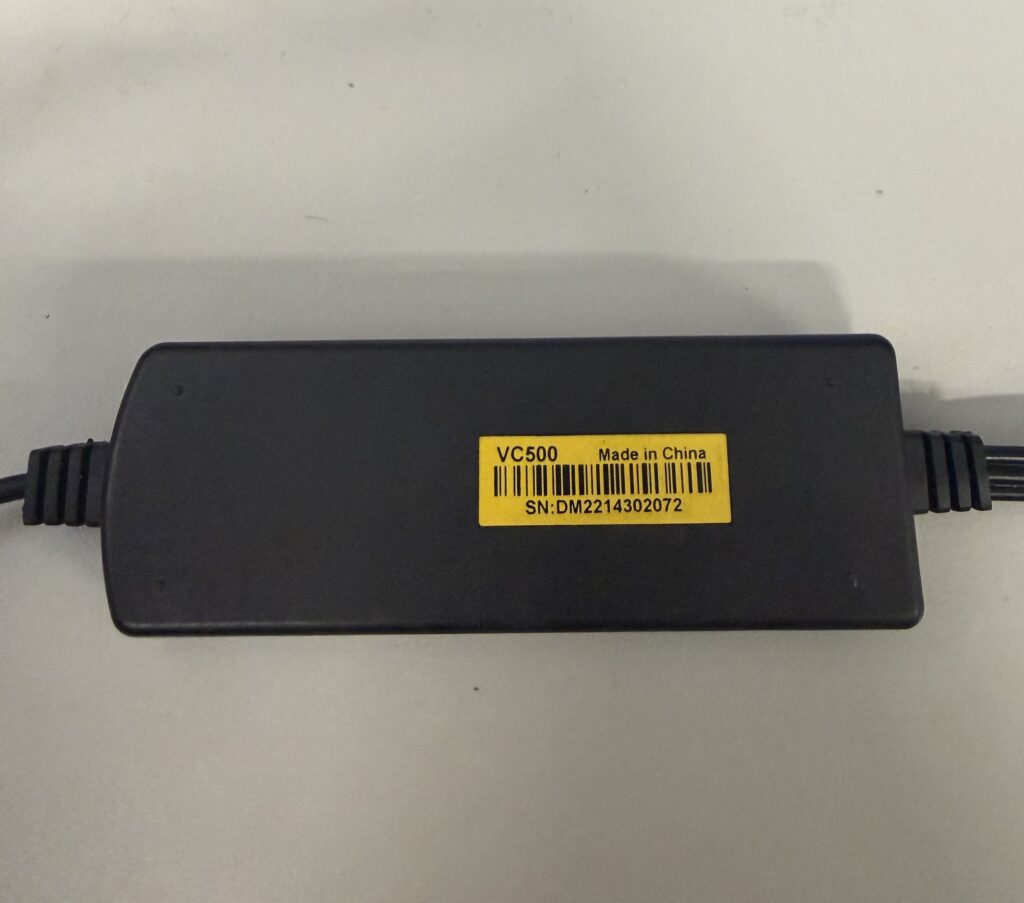
Check the label on the back of your device. This guide is only for the VC500 purchased before 2023. Other models have their own guides:
- VC500SE: VC500 & VC500SE Installation Guide
- VC500CXT: VC500CXT Installation Guide
2 Download
- Download the installation package: VC500.zip
- Extract (unzip) the whole VC500.zip file to a folder on your computer. The driver will not install correctly if you run it from inside the ZIP file.
3 Install the Driver
On Windows 11? Turn off Memory Integrity first, or Windows will block the driver:
- Search the Start Menu for Windows Security and open it.
- Go to Device Security, then Core Isolation Details.
- Turn Memory Integrity OFF, then restart your computer.
This lowers Windows’ protection against harmful drivers, and it doesn’t guarantee the older driver will work.
- Plug the VC500 into your computer.
- In the extracted folder, open the Driver folder and run Setup. If it asks, choose Upgrade.
- Check that the driver loaded: right-click the Windows Start button, open Device Manager, and expand Sound, video and game controllers. You should see USB 2.0 Video Capture and USB 2.0 Audio Capture.
See a yellow triangle with “!” next to USB 2.0 Video Capture? Windows 11 is blocking the driver. Go to Yellow “!” or Code 52 in Section 7.
4 Install Honestech Video Recording Software
Prefer free OBS Studio? See Section 6.
- Open the Video Recording folder and run Setup.exe.
- When asked for your CD-KEY, enter it. Need one? Email [email protected].
5 Start Recording
- Open Honestech VHS to DVD 4.0 SE.
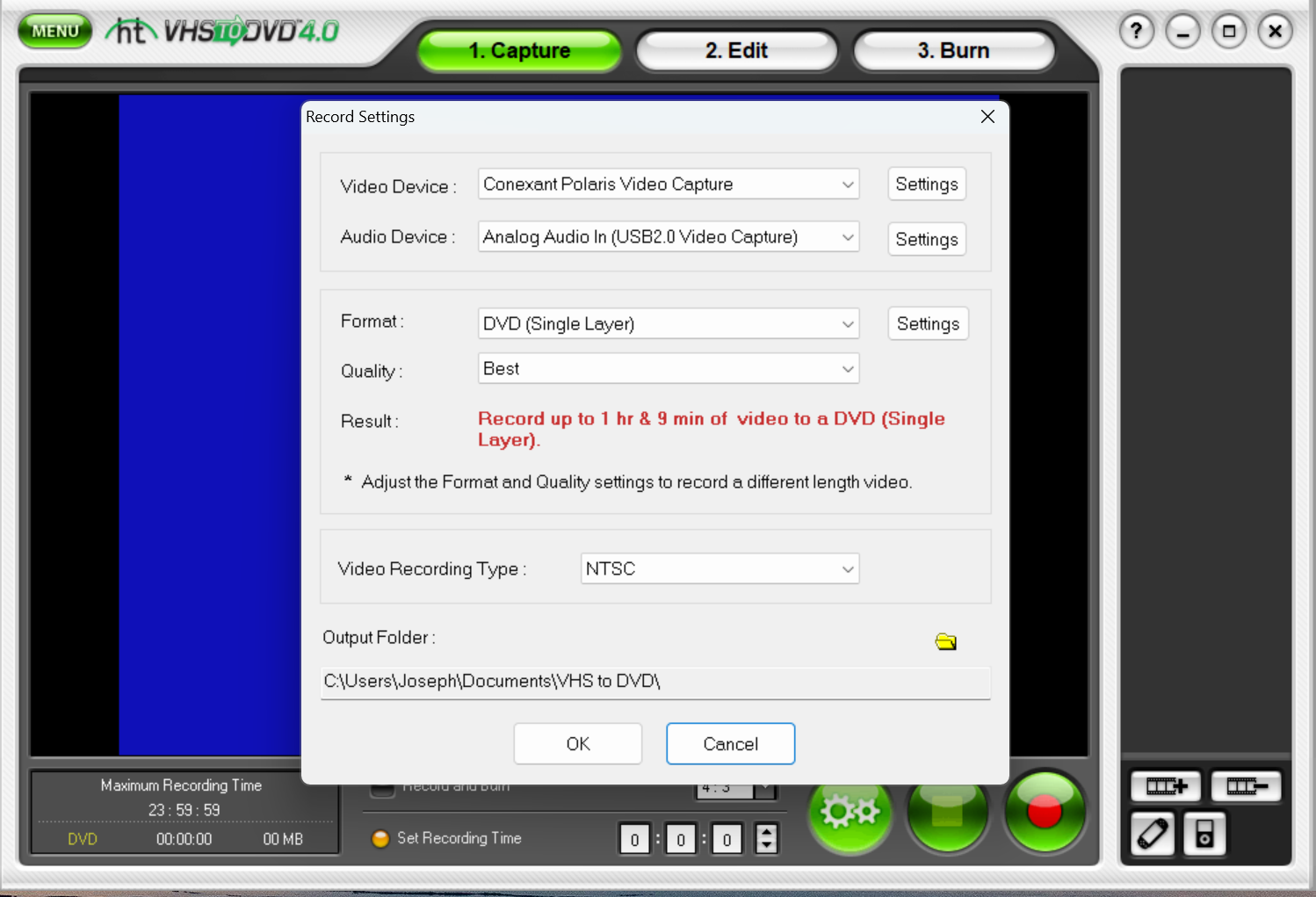
- On the 1. Capture tab, click the green Settings button (the gears) and choose these, then click OK:
- Video Device: Conexant Polaris Video Capture
- Audio Device: Analog Audio In (USB2.0 Video Capture)
- Format: DVD (Single Layer) · Quality: Best · Video Recording Type: NTSC
- Output Folder: where your videos are saved
- Press Play on your VCR and start recording.
Only your laptop’s camera in the Video Device list? The driver isn’t loaded. Go to Yellow “!” or Code 52 in Section 7.
6 Optional: Record with OBS Studio Instead
Prefer a newer, free program, or seeing a green picture in Honestech? You can record with OBS Studio instead. It still needs the driver from Section 3. OBS saves video files; to make DVDs, use Honestech.
Show the OBS steps
- Download OBS Studio from obsproject.com, install it and open it. If an Auto-Configuration Wizard appears, click Cancel.
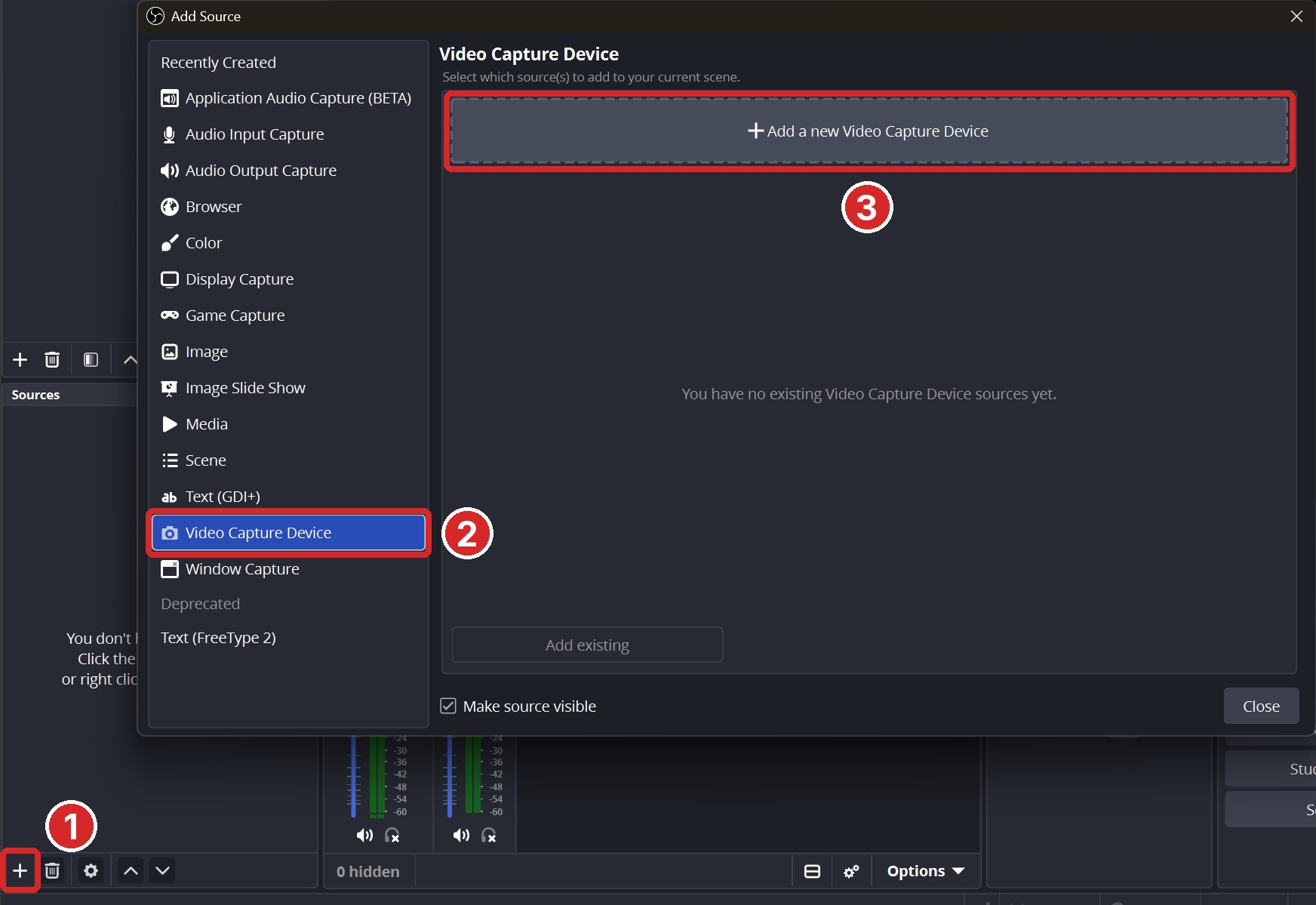
- In the Sources box, click +, choose Video Capture Device, and click + Add a new Video Capture Device.
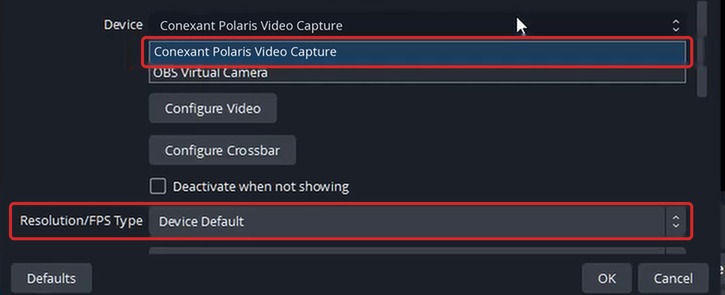
- Set Device to Conexant Polaris Video Capture and Resolution/FPS Type to Device Default.
- Scroll down: set Audio Output Mode to Output desktop audio (DirectSound), check Use custom audio device, and set Audio Device to Analog Audio In (USB2.0 Video Capture). Click OK.

- Click Start Recording, then press Play on your VCR.
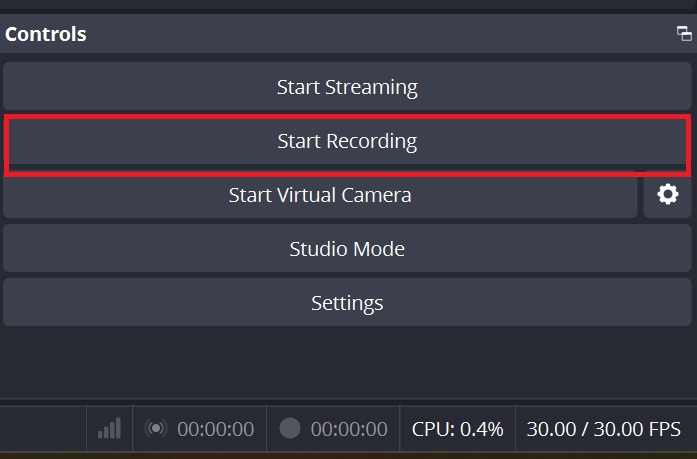 When you’re done, click Stop Recording. Find your video under File > Show Recordings.
7 Fix Common Problems
Yellow “!” or Code 52 in Device Manager
Windows 11 can’t verify this older driver’s signature, so it won’t load it. Diamond Multimedia has no supported fix, but this temporary workaround has worked for some customers. Use it at your own risk:
- Hold Shift and click Restart in the Start menu.
- On the blue screen, go to Troubleshoot > Advanced options > Startup Settings > Restart.
- Press F7 to choose Disable driver signature enforcement.
- When Windows starts, install the driver again (Section 3).
Prefer to watch? This short video shows the same steps:
This only lasts until your next restart, so you may need to repeat it each time you record. It lowers your computer’s protection, so restart normally when you’re done. If it doesn’t work, the current VC500 needs no driver and works on Windows 11.
Green or pink (magenta) picture
Opening your VC500 in the free OBS Studio can clear it. Set up OBS with the steps in Section 6 and press Play on your VCR. The green screen should clear, and you can then record in Honestech VHS to DVD or OBS Studio.
No picture
- Make sure the tape is playing and the yellow cable is in your VCR’s VIDEO OUT.
- Desktop: use a USB port on the back. Laptop: try a different USB port, then restart.
- Go to Settings > Privacy & security > Camera and make sure apps can access the camera.
- In Device Manager, check that USB 2.0 Video Capture is listed with no warning icon.
No sound, or sound missing on playback
- In Honestech’s Settings, set Audio Device to Analog Audio In (USB2.0 Video Capture).
- Make sure the red and white cables are in your VCR’s AUDIO OUT.
- Heard the sound while recording, but it’s missing in Windows Media Player? The recording is fine. Play it with the free VLC Media Player instead.
Still need help? Email [email protected] with your model number and Windows version.
Updated on 11/13/2026