
VC500 Legacy Model (Use if purchased before 2023)
Only for VC500 units purchased before 2023.
These older units need a separate driver. If you bought your VC500 in 2023 or later, or you have a VC500SE, no driver is needed: use the VC500 & VC500SE Installation Guide instead.
Using Windows 11? Recent Windows 11 updates can show a Code 52 error that stops this driver from loading. Some customers have fixed it with our workaround in Section 7, but it may not work on every computer. If it doesn’t, the current VC500 we sell now needs no driver and works on Windows 11.
1 Model Confirmation
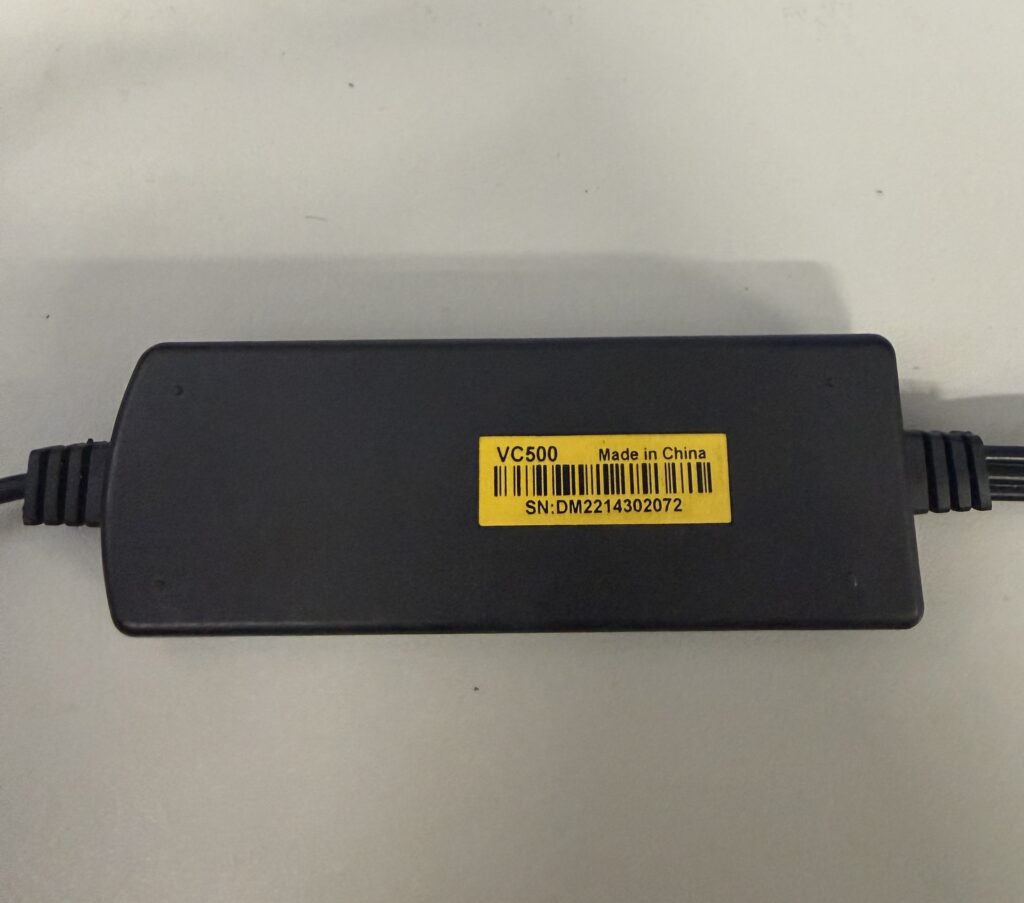
Check the label on the back of your device. This guide is only for the VC500 purchased before 2023. Other models have their own guides:
- VC500SE: VC500 & VC500SE Installation Guide
- VC500CXT: VC500CXT Installation Guide
2 Download
- Download the installation package: VC500.zip
- Extract (unzip) the whole VC500.zip file to a folder on your computer before you install anything.
Extract the ZIP first. The driver will not install correctly if you run it from inside the ZIP file.
3 Install Drivers
Connect first. Plug the VC500 into your computer before you install the driver.
- In the extracted folder, open the Driver folder, then the x64 folder.
- Run Setup64.exe and follow the prompts.
4 Install the Video Recording Software
- Open the Video Recording folder.
- Run Setup.exe and follow the prompts.
- When asked for your CD-KEY, enter it. If you need a CD-KEY, email us at [email protected].
5 Start Recording
- Open Honestech VHS to DVD 4.0 SE.
- Press Play on your VCR or camcorder and start recording.
6 Windows 11 – Blocked Driver Fix
If Windows 11 blocks the VC500 driver:
- Search the Start Menu for Windows Security and open it.
- Go to Device Security, then Core Isolation Details.
- Turn Memory Integrity OFF.
- Restart your computer.
- Install the driver again (Section 3) and choose Upgrade when asked.
Please note. Turning off Memory Integrity lowers Windows’ protection against malicious drivers, and it does not guarantee the older driver will work. If you would rather not change it, the current VC500 is driverless and designed for Windows 11: see the current VC500.
7 Windows 11 – Code 52 Error
Recent Windows 11 updates can show a Code 52 error for the VC500 in Device Manager, even before the driver is installed. Code 52 means Windows cannot verify the digital signature of the driver, so it will not load it.
No supported fix yet. Diamond Multimedia has not found a supported way around Code 52 on Windows 11. Some customers have been able to get the driver working with the temporary workaround below. Use it at your own risk.
Workaround: Temporarily Disable Driver Signature Enforcement
- Hold down the Shift key on your keyboard while clicking Restart in the Windows Start menu power options.
- On the blue recovery options screen, go to Troubleshoot > Advanced options > Startup Settings > Restart.
- When the list appears, press the F7 key to choose Disable driver signature enforcement.
- Your computer starts Windows and allows the unsigned driver to load. Now install the driver (Section 3).
Please note. This setting only lasts until your next restart. Windows turns signature checks back on automatically, so the driver may stop working after you restart and you may need to repeat these steps. Turning off signature checks lowers your computer’s protection against harmful drivers, so only use it while you capture, and restart normally when you’re done. If you’d rather not do this, the current VC500 is driverless and designed for Windows 11: see the current VC500.
8 Troubleshooting
Check the USB Connection:
- Desktop: Use a USB port on the back of the computer.
- Laptop: Try a different USB port.
- Restart your computer after reconnecting.
Confirm Windows Detects the Device:
- Open Device Manager.
- Expand Sound, video and game controllers.
- Check that USB 2.0 Audio Capture and USB 2.0 Video Capture are listed without a warning icon. If they are missing or show a warning, install the driver again (Section 3).
Check Windows Camera Privacy Settings:
Go to Settings > Privacy > Camera and make sure apps are allowed to access the camera.
Make Sure Windows Is Fully Updated:
Go to Settings > Update & Security, install all available updates and restart. Check again until no more updates are available.
Select the Correct Audio Device:
In the capture software settings, set the Audio Device to USB Analog Capture.
Audio Missing or Out of Sync in Windows Media Player:
If you could hear the sound while recording, it was captured correctly. Windows Media Player may be missing the audio codec it needs to play the file. Play your video with the free VLC Media Player instead.
Still need help? Email [email protected] with your model number and Windows version, and our team will help.
Updated on 10/13/2026